
OCEANMAIL / HELP CENTER
Manage mailboxes
Create mailboxes, reset passwords and check status as an administrator.
Create a mailbox
In the customer portal, create mailboxes within your allocation on a verified domain with an active service.
- Sign in to the customer portal with mailbox-management permission and open Email address.
- Select Create email address, choose an available product and domain, and enter the local part and display name.
- Enter and confirm a mailbox password, then submit the request.
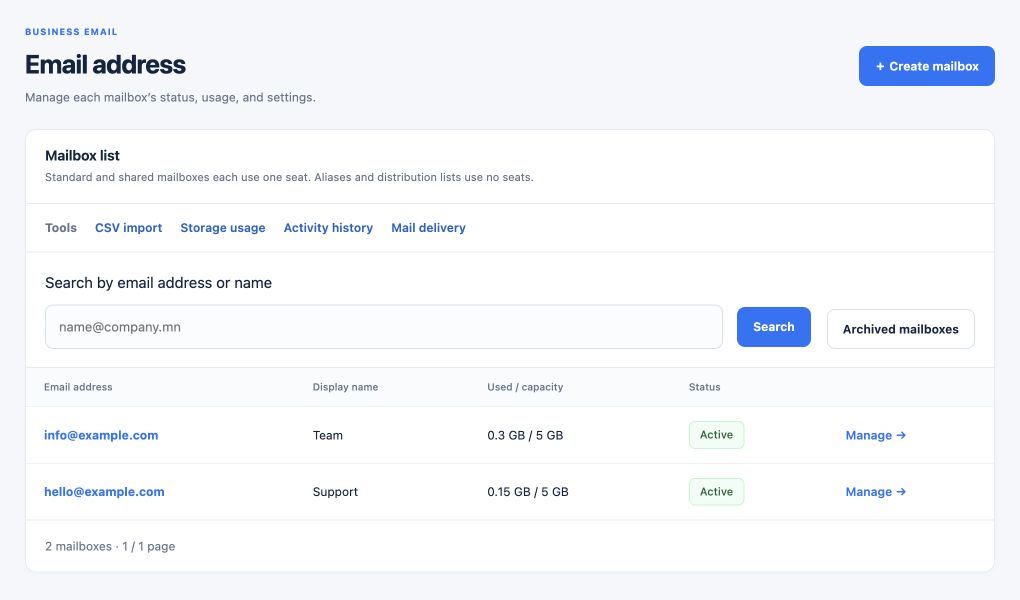
- Check the request status and free allocation in the list; a request on an unverified domain waits for verification.
Mailbox details
Use the mailbox detail page to manage the password, status and other permitted settings. Check the action status after it is applied to the mail server.
- Open the address or select Manage from the list.
- Expand the relevant setting, such as Change mailbox password, and save the permitted change.
- Check that the action was applied and tell the user to sign in again with the new mailbox password.
Access and security
Grant mailbox-management permission only to people who need it. The portal password and a mailbox password are separate.
- Grant mailbox-management permission only to people who need it.
- Do not put passwords in tickets, chat or screenshots.
- Archived and pending addresses can affect free capacity; review their status in the list.