
OCEANMAIL / HELP CENTER
Account and security
Protect your registration email and two-factor authentication.
Registration email
Verify ownership of your registration email and protect access to it. Contact support if you lose access to the registered email address.
- Register with an email address you control and open the verification link sent to it.
- Protect access to the registration mailbox and its credentials.
- If you lose access to that email address, contact OceanMail support.
Two-factor authentication
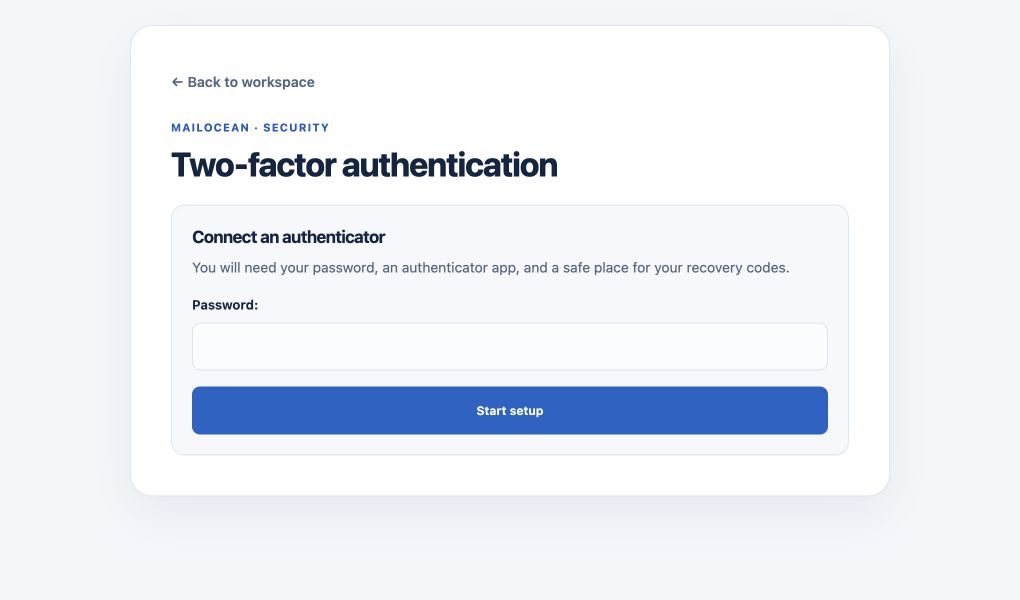
In the customer portal’s two-factor authentication settings, connect an authenticator app and activate it with the requested code. Store any recovery codes securely in a separate location.
- In the customer portal open Two-factor authentication and confirm your password to start setup.
- Add an account in your authenticator app and scan the displayed QR code; enter the setup key manually if necessary.
- Enter the six-digit code from the newly added account and activate it.
- Store the displayed recovery codes securely in a separate place and confirm that you saved them. Each code is single use.
Keep credentials private
Never share passwords, one-time codes, recovery codes or your authenticator QR/secret. Grant each person only the access they need.
- Never share the QR code, setup key, password, one-time codes or recovery codes.
- To change devices, use the change-authenticator flow and remove the old account only after confirming the new one.
- If you cannot use your authenticator at sign-in, use one previously saved unused recovery code.